
Category: WordPress • Est. reading time: 2 minutes
When you bring someone new onto your site, whether a teammate, a writer, or your developer, you give them their own account. The role you assign controls exactly what they can and cannot do, which keeps your site safe from accidental damage. WordPress comes with five built-in roles, and you can add custom ones if you ever need to.
Understanding the Roles
Administrator: full control over the entire site, its content, themes, plugins, users, and settings. This is usually the owner, and you should hand it out sparingly.
Editor: can manage and publish any post or page, including ones other people wrote. A good fit for a content manager.
Author: can write, edit, and publish their own posts, but cannot touch anyone else’s. A good fit for an individual contributor.
Contributor: can write and edit their own posts but cannot publish them. An Editor or Administrator publishes for them, which suits guest writers or new team members whose work you want to review first.
Subscriber: the most limited role. Manages their own profile and can receive updates, but cannot create or edit content. Common on membership or newsletter sites.
Two extras worth knowing. You can create custom roles with their own specific capabilities, either with a bit of code or a role-management plugin such as Members or User Role Editor. And if you run a WordPress multisite network, there is a sixth role, Super Admin, with control over the whole network, its sites, and network-wide plugins and settings.
How to Add a User
1. Log in and go to Users, then Add New User.website
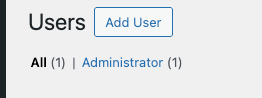
2. Fill in a username and email address. You can add a first and last name too.te “Users” on the left navigation bar.
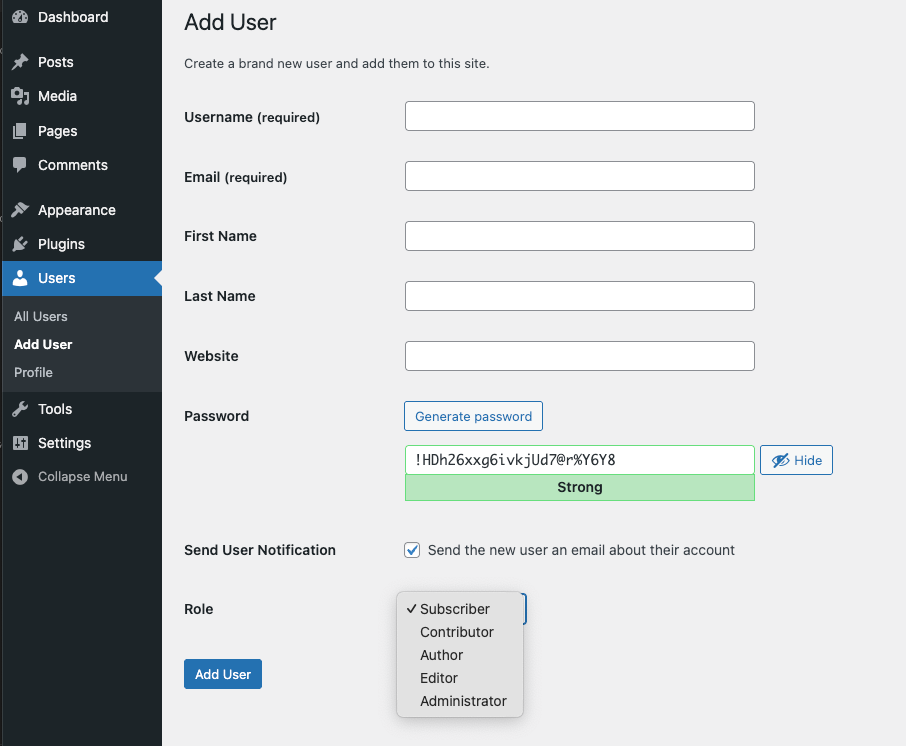
3. Set a password, or let WordPress generate a strong one for you.er” located at the top of the screen.
4. Choose a Role from the dropdown.
5. Click Add New User. Leave Send User Notification checked to email them their account details.
Our Rule of Thumb
Give people the lowest role that still lets them do their job. Hand out Administrator sparingly, because that account can change or break anything.
We teach WordPress live and one-on-one at allydrez.com/learn-how-to-use-wordpress, or we will manage your site for you. Reach us at support@allydrez.com or 1-321-209-2004.