
Category: FTP & File Transfer • Est. reading time: 2 minutes
Downloading pulls a copy of files from your server onto your computer, which is handy for backups or editing something locally. FileZilla shows your computer on the left and your server on the right, so it is really just moving things from right to left.
The Steps
1. Connect to your server in FileZilla.
2. In the left panel (Local site), open the folder on your computer where you want the files to land.
3. In the right panel (Remote site), find the file or folder you want.
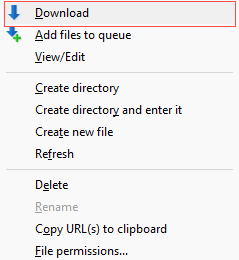
4. Drag it from the right panel to the left, or right-click it and choose Download.
5. Watch the transfer queue at the bottom. When it clears, your download is done.
Tip: downloading a full copy of your site before you make changes is a simple, free safety net. If something breaks, you have the original.
Want backups handled for you? That is part of what our managed hosting does. Reach us at support@allydrez.com or 1-321-209-2004.