
Category: WordPress • Est. reading time: 3 minutes
Categories sort your posts into topics so readers, and search engines, can find their way around. Keeping them tidy makes your whole site easier to navigate. Here is how to add, remove, and deal with the default “Uncategorized.”
Add a New Category
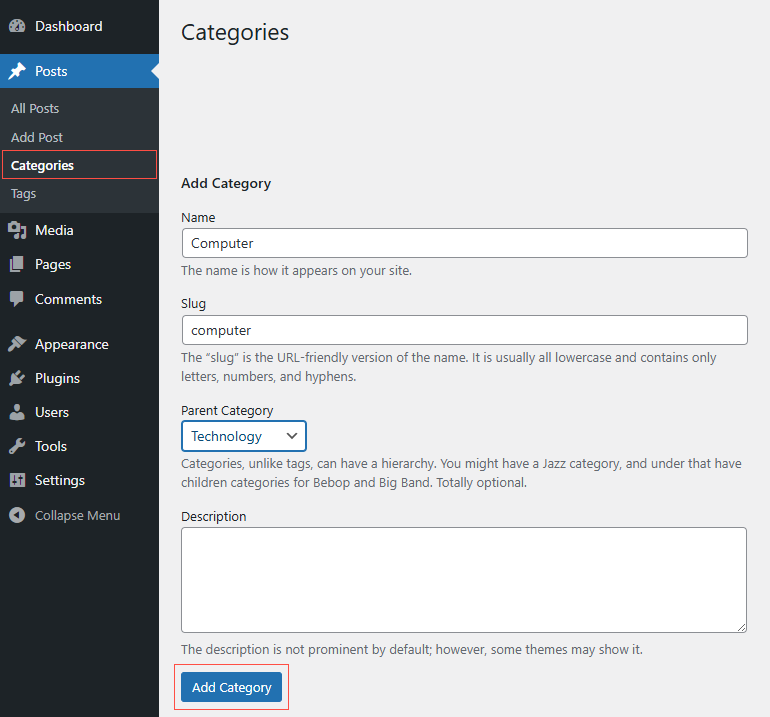
- Go to Posts, then Categories.
- On the left, fill in a Name. The slug fills in automatically.
- Optionally pick a parent to nest it under, then click Add New Category.
Remove a Category
- On the same Categories screen, hover over the one you want gone and click Delete.
- Confirm. Your posts are safe: deleting a category does not delete its posts. Any post left with no other category is simply moved to Uncategorized.
About “Uncategorized”
WordPress ships with a default category called Uncategorized, and it cannot be deleted while it is the default. To retire it, go to Settings, then Writing, and choose a different default post category. Once it is no longer the default, you can delete Uncategorized from the Categories screen.
Before you delete a category on a live site, reassign its posts to the right category first. That way none of them fall into Uncategorized by accident, and none of your category-archive links break.
A Quick Word on Tags
Tags are the other way WordPress organizes posts, and people often mix them up with categories. The difference: categories are broad groupings, the chapters of your site, while tags are specific keywords, more like an index. A post about a kitchen remodel might sit in the “Renovations” category and carry tags like “cabinets” and “countertops.” Tags are optional, they have no parent-child hierarchy the way categories do, and you add them right in the post editor or under Posts, then Tags. Use them sparingly and specifically; a handful of relevant tags beats a pile of loose ones.
Need a Hand?
Learn with us at allydrez.com/learn-how-to-use-wordpress, or reach us at support@allydrez.com or 1-321-209-2004.