
Category: Security & SSL • Est. reading time: 4 minutes
A CSR, or Certificate Signing Request, is a block of encoded text you hand to a certificate authority when you buy a paid SSL certificate. It carries your domain and organization details and is tied to a private key on your server. You only need a CSR for a purchased certificate. Free AutoSSL handles all of this for you. This guide covers all three tasks: creating a CSR, viewing it, and removing one you no longer need.
Generate a CSR
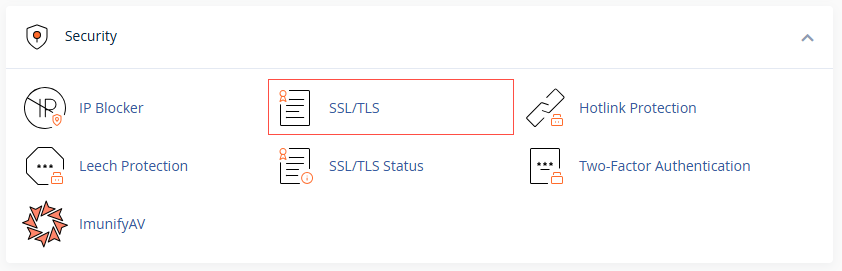
- Log in to cPanel and open SSL/TLS in the Security section.
- Click Certificate Signing Requests (CSR).
- Fill in your domain and organization details: domain, company, city, state, country, and email. Accuracy matters here, since the authority checks it.
- Click Generate. cPanel creates the CSR and its matching private key.
View or Retrieve a CSR
- On the same Certificate Signing Requests page, scroll to the list of existing CSRs.
- Click the one you want, and copy the full block of text, including the BEGIN and END lines. That is what you paste into your certificate provider’s order form.
Remove a CSR
- In the CSR list, find the one you no longer need.
- Click Delete and confirm.
Keep the private key with its CSR. A CSR and the private key generated alongside it are a pair. If you delete the key, a certificate issued from that CSR will not install. When in doubt, leave them be.
Buying a paid certificate and want it done without the head-scratching? We handle the whole CSR-to-install process. Reach us at support@allydrez.com or 1-321-209-2004.